Check your Apple device's iCloud status by selecting a model and entering the serial number
Device Information
Download Free iCloud Check Tool
A fast, reliable, and completely free utility for Windows PC. Verify iCloud Activation Lock, Find My iPhone status, and more effortlessly.
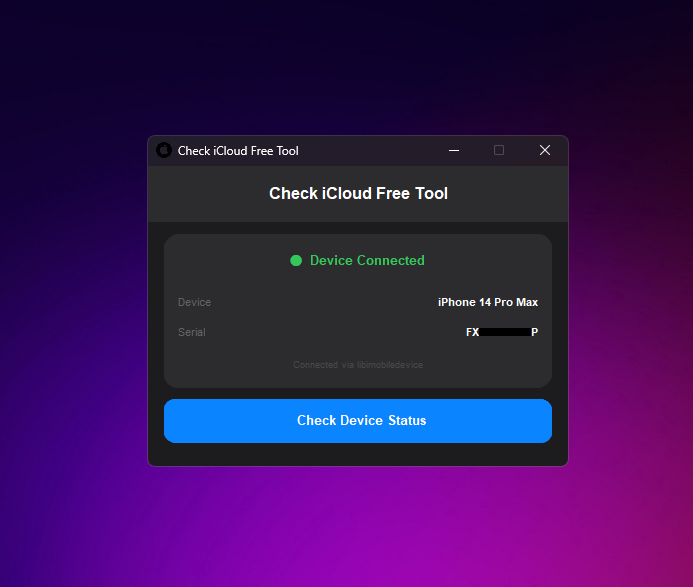
Download, Run & Connect
Download the tool, run it, and connect your Apple device via USB.
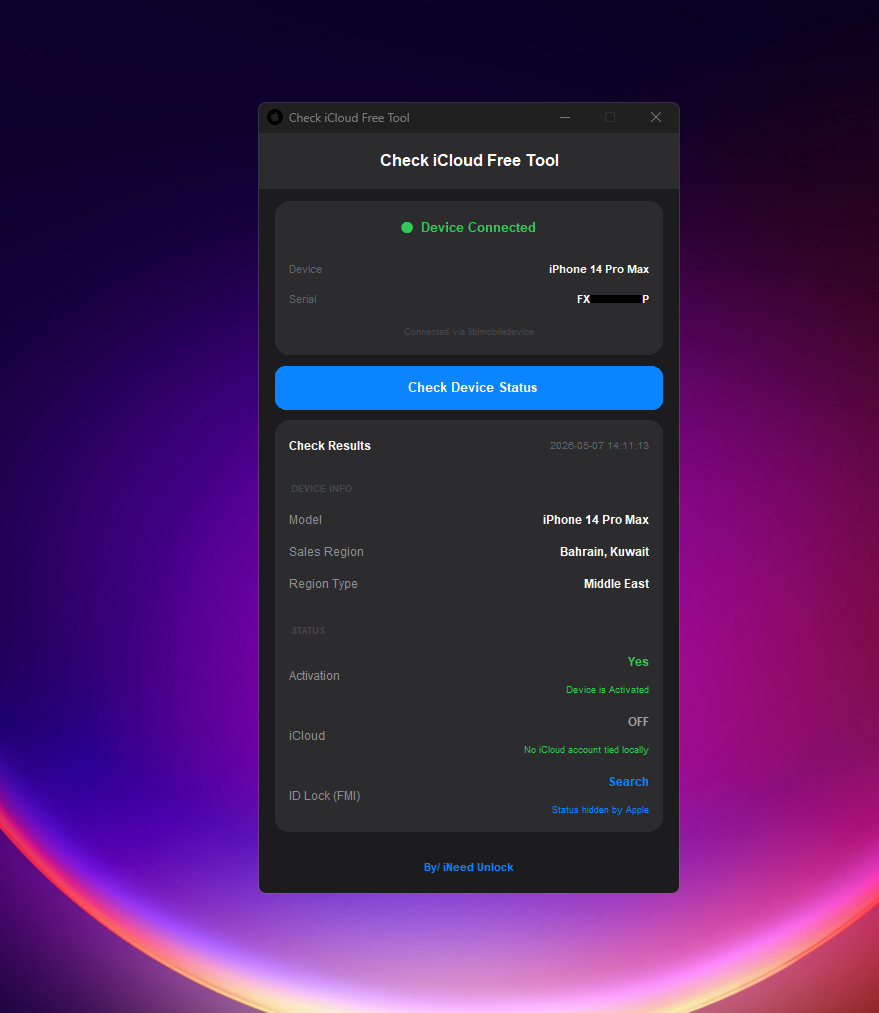
Check Status Instantly
Click on the Check Status button to reveal your device's detailed report.
How It Works
Our free iCloud IMEI check service can provide you with the iCloud status of your device. This is the best way to check the iCloud status of a phone you want to purchase, using either the IMEI or serial number, to ensure that the device is not on Lost mode.
If the device you want to buy is on Lost mode, it means that the phone was lost or stolen and you should not purchase it, as you will lose your money. Our service supports both IMEI and serial number checks, and you can also check the iCloud status of your iPad or Apple Watch.
What We Check
- iCloud Status (Clean/Locked)
- Find My iPhone Status
- Activation Lock Status
- Device Blacklist Status
- Carrier Lock Status
How to Find Your IMEI Number
There are several ways to find your device's IMEI or Serial Number:
In Settings
Go to Settings > General > About and look for your device's IMEI
Dial *#06#
Dial *#06# on your iPhone to get the IMEI number instantly
On Device Back
Check the back of your iPhone for engraved IMEI number
SIM Tray
Remove SIM tray and check for IMEI/SN engraved on it
Why Check iCloud Status?
Before purchasing any Apple device, it's crucial to check its iCloud status to avoid potential issues:
- Prevent buying stolen or lost devices
- Avoid devices with Activation Lock
- Ensure device is not blacklisted
- Verify device is not carrier locked
- Protect your investment and avoid scams